Brat Video Generator
Create animated brat-style videos
How to Use the Brat Video Generator
The brat video generator above runs entirely in your browser — no account needed, nothing uploaded to a server. Here's how the workflow goes from start to exported video.
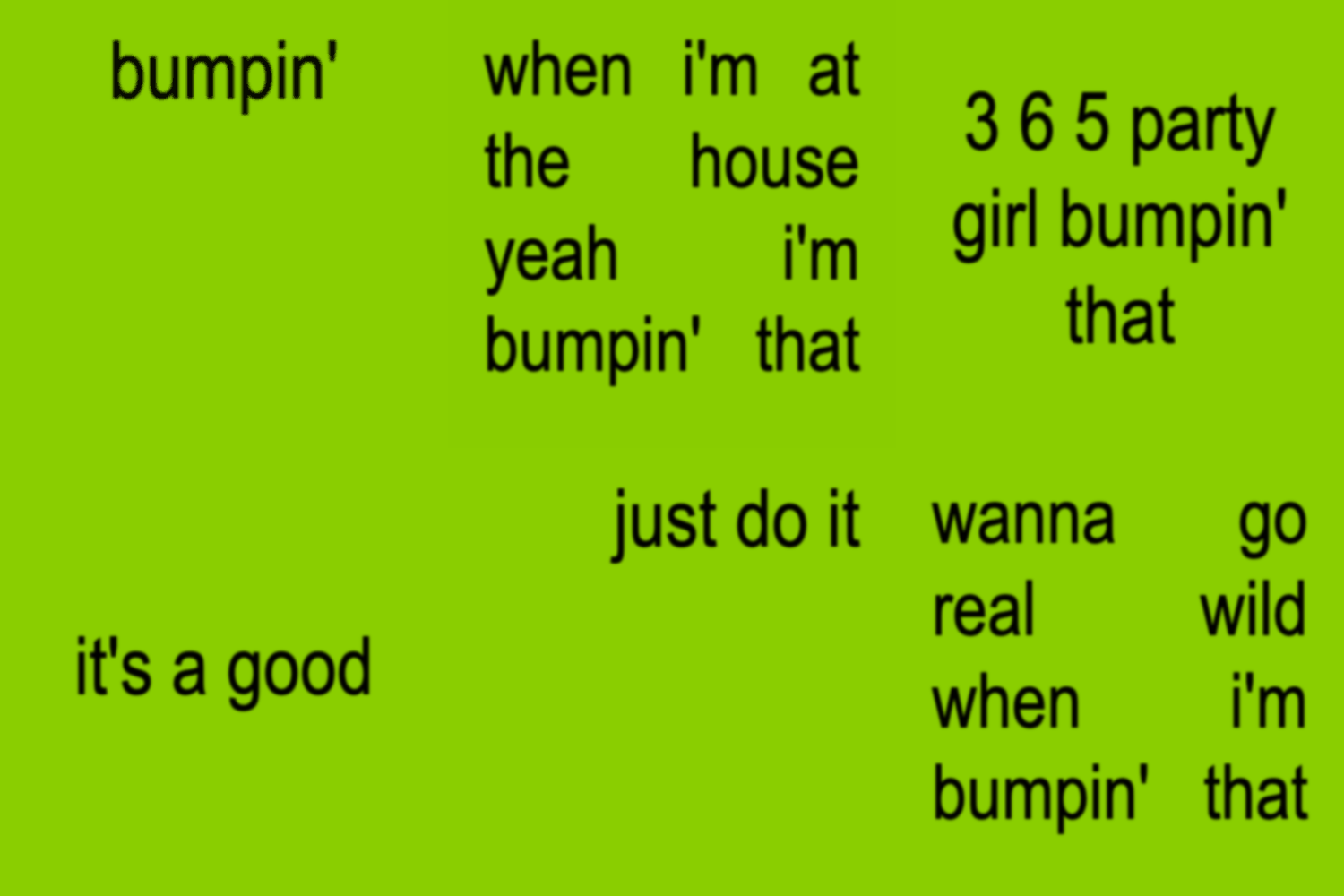
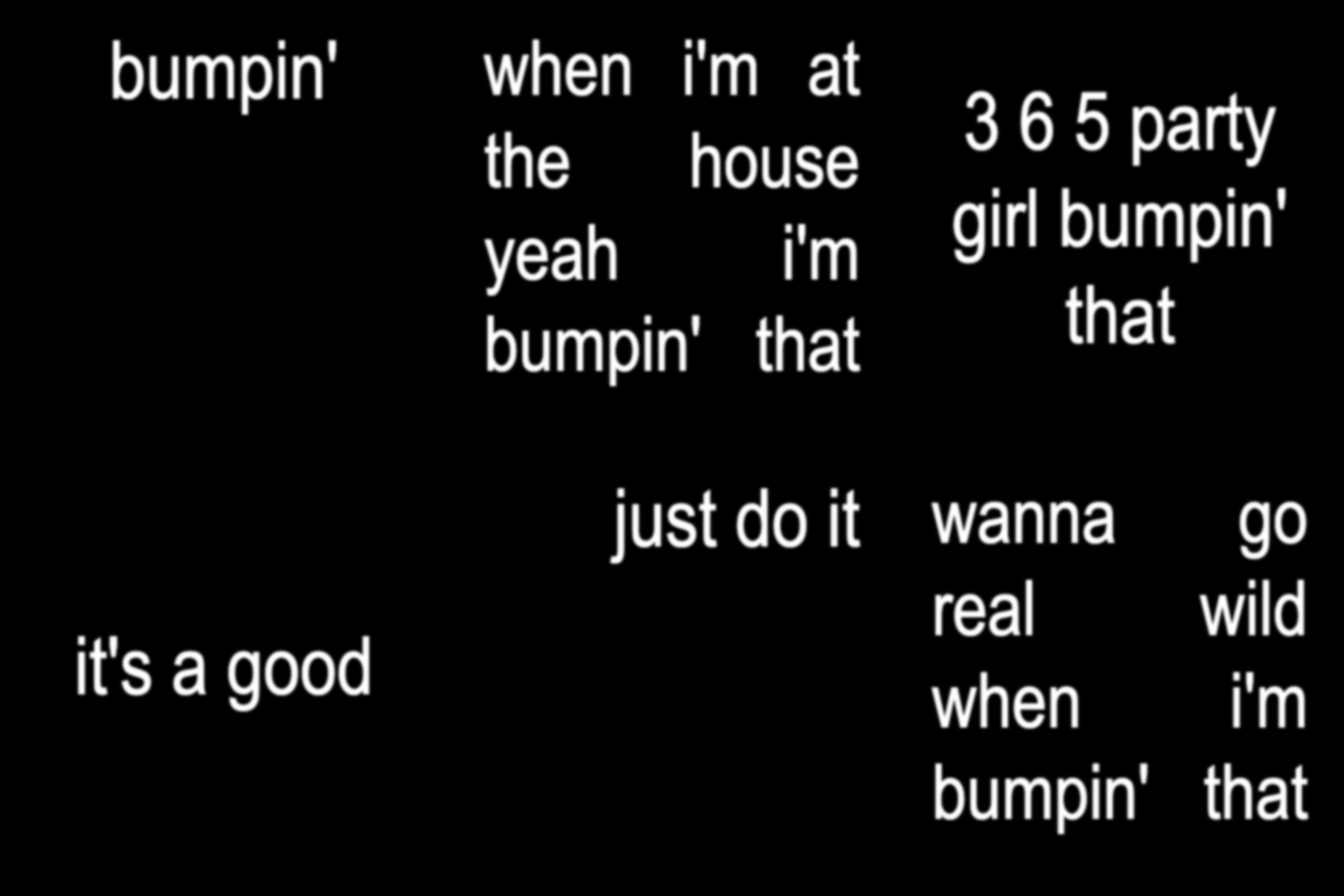

Step 1: Type your text
Type or paste your text into the editor. Each line becomes its own set of frames — one word per frame by default. Short lines work best: 3–6 words read cleanly at normal playback speed. Lowercase matches the original brat style, but the editor handles any case.
Step 2: Pick a color
Choose from the available color presets — green, black, white, pink, and more. You can set different colors per frame, which works well for dialogue, lyric sections, or emphasis. See the full brat colors guide for when to use each one.
Step 3: Add audio (optional)
Upload an MP3, WAV, or M4A file. The audio timeline shows the full waveform — drag regions to place each text frame exactly where you want it. Use the zoom controls for precision, and loop sections to check timing before exporting. You can trim the audio inside the editor without any external tools. See supported audio formats if your file isn't uploading.
Step 4: Export
Pick your aspect ratio (9:16 for TikTok and Reels, 1:1 for feed posts, 16:9 for YouTube), then choose your format:
- MP4 — includes audio, full quality, ready to upload anywhere
- GIF — no audio, good for Discord, Twitter, or embedding
- ZIP (PNG frames) — every frame as a separate image, import into CapCut or Premiere for further editing
30 FPS works for most content. Export runs locally — no upload wait, no server queue. Full details in export formats explained.
Audio Sync in Detail
The audio timeline is the main thing that separates bratify from simpler tools. You get a visual waveform, draggable regions per frame, zoom controls, and loop playback. Each region maps to one text frame — move it, resize it, and preview in real-time before committing to an export.
- Place text on the exact beat by zooming in on the waveform
- Loop a section to check timing without re-watching the whole video
- Adjust playback speed during preview to catch timing issues
- Trim audio start/end inside the editor — no need for a separate audio editor
More techniques in the audio sync tips guide.
Color Presets
Five presets are available: green (the original brat look), black, white, pink, and pumpkin. Each preset sets background and text color together for maximum contrast and readability on mobile screens.
You can switch colors between frames inside a single video — useful for showing different speakers, marking a mood shift in lyrics, or breaking up a longer video visually. Browse all options on the color presets page.
Platform Settings
The aspect ratio determines how the video fits on each platform:
- 9:16 vertical — full screen on TikTok, Instagram Reels, YouTube Shorts
- 1:1 square — Instagram feed posts, Twitter/X
- 16:9 horizontal — YouTube standard, desktop embeds
For TikTok and Reels, 30 FPS is standard. 60 FPS is smoother but produces larger files — most platforms compress it down anyway.
Frequently Asked Questions
Is the brat video generator free?
Yes. No account required, no watermark on exports, no file limits. The tool is free to use.
Can I use copyrighted music?
The generator lets you upload any audio file. Whether you can post the result depends on the platform and the track. TikTok and Instagram have licensed music libraries that are safe to use natively on those platforms. For YouTube, use royalty-free tracks or your own music to avoid content ID claims.
My audio isn't uploading — what's wrong?
Bratify accepts MP3, WAV, and M4A. Other formats (OGG, FLAC, WMA) aren't supported yet. Convert your file to MP3 using any online converter, then try again. Full details in supported audio formats.
The audio sync is off — how do I fix it?
Check that you clicked "Map Sets" after uploading audio — that's the most common cause. If timing is close but not quite right, zoom into the waveform and drag the regions manually. More fixes in troubleshooting.
Does it save my work?
The editor keeps your text, colors, and audio regions in browser memory while the tab is open. Don't close the tab before exporting — there's no cloud save yet. Project save is on the roadmap, see what's coming.
What browser works best?
Chrome and Edge on desktop give the best performance for export. Safari works on iOS but has stricter memory limits — keep audio clips short and close other tabs before exporting.
How do I download the video after export?
The file downloads automatically when export finishes. If nothing happened, check for a blocked download notification in your browser's address bar. Step-by-step guide: how to download your brat video.
Need a Static Image Instead?
If you just need a quick brat-style graphic without animation or audio, use the brat generator — it creates PNG, JPEG, or WebP images in the same format. Faster workflow for memes, thumbnails, and profile pictures.